Showing posts with label Project Server. Show all posts

Tuesday, March 19, 2019

Delegation in Project Online: what's wrong??

4 years ago, I wrote an article about the delegation limitations and it has reached a great number of views. I guess this is because the delegation feature is (I should say was) intensively used by administrator for daily support and security model use case testing.

However back to May 2016, we noticed a strange behavior while running delegation sessions. Starting a delegation session for a user with limited access (team member for example), we were seeing more projects than we were supposed to. As usual, Brian Smith reacted promptly and published an article to explain this unexpected behavior. I didn't update my initial article at this time, and I now feel like I should write a short post about it since I still see this question on the TechNet forums and from some on my customers, so I think that this change in the delegation feature is still not completely known and well understood.

Basically you'll see this unexpected behavior if the delegate user is a global administrator (O365 admin or Site Collection admin). Here the reason of the change, with Brian's words: "The reason for the change is that in Project Online customers were accidentally locking themselves out of PWA by removing all their PWA administrators – and then the only way to make a user an admin again was to open a support call". To avoid this frustrating situation where the admin is locked into a delegation session, this restriction was created.

The workaround is unfortunately not magic: you simply have to use a session (not delegated) of a user to test the security model. 

Share this article :

Sunday, November 18, 2018

Project Server 2019 Released

In a fast pace changing environment, Microsoft is continuously improving its Project Management platform via Project Online. While traditionally all enhancements are released in real time via Project Online, just one of the benefits of being in the cloud, Microsoft has released a bundled three-year snapshot of enhancements to its 2019 product for their loyal on-premises clients.


What’s new in Project Server 2019?

 Agile Delivery in your day to day Project Management Software

The new Project Server 2019 release introduces higher performance resulting from optimizations applied in the database layers.  Additional benefits include:

  Continuous PPM Innovation

Microsoft Project Server has been built on continuous PPM Innovation.  While Project Server 2019 is an on-premise version, you can connect to it from several desktop clients.
Share this article :

Monday, April 11, 2016

Resource engagement: utilization calcuation setting

Hi,

If you are using Project Online or Project Server 2016, you might have activated the resource engagement new feature. In case you are not familiar with this functionality, you can read this post I wrote when the feature was released. It comes in replacment of the resource plans. An interesting capability of the resource plan was to set wheither the capacity/resource utilization was calculated from the project, the resource plan or both (specifying a transition date). 


Now where is this parameter? Navigating in the PWA capacity plans from the resource center, I couldn't find it. Got this answer thanks to the MVP distribution list, you have to set it using MS Project Pro, going to the project information. Note that the setting is available only for the published projects.


The "project plan until" still has the same behavior. This will trigger the utilization calculation from the project plan on a short term horizon until the specified date and then from the resource engagements.

Got it?

Share this article :

Sunday, January 31, 2016

Shout what YOU need. but not too loud!

Hello everyone

Microsoft announced last week the availability of a community site to submit and prioritize ideas for the future of Project and Project Server.
This is a very good news which is using the same crowd-ideation system as Power BI and I really feel that this is beneficial to all the community to contribute to such idea listing and voting.

So please, have a look to:

While you are on the web site, you can either submit ideas:


Or you can vote for ideas. you have 10 available votes per email address and your vote are released as soon as the idea you voted for is implemented.

It's time to shout your ideas!

Enjoy!
Share this article :

Thursday, August 27, 2015

My first Power Map tour!!

A while ago I wrote a blog post about Power BI tools. At this time I had no Excel 2013 available so I played only with Power BI desktop and Power BI App which don't require Excel 2013. But to give a first overview of the Power BI tool, I share with you this simple but clear picture from Devin Knight's website, a fellow SharePoint MVP.


I was able to build really nice reports without Excel 2013 and my post has been read by many folks, one of the most successful post I wrote! But unfortunately I was not able to play around with Power Map: indeed it is not available with Power BI App, even though you can create a map report but without all the nice features provided by Power Map. 

But you know what? I finally managed to get Excel 2013! The first thing I did was to install all the Power BI addons and start playing with Power Map. So let me share with you my first little Power Map tour. Please be indulgent with me, that's a first shot! But to give you the envy to go through this post, here is what you'll be able to achieve:

Set up Excel 2013
First step is to download the addons and activate them in Excel. Once downloaded, you can go to the COM Add-ins dialog box and check all required items.
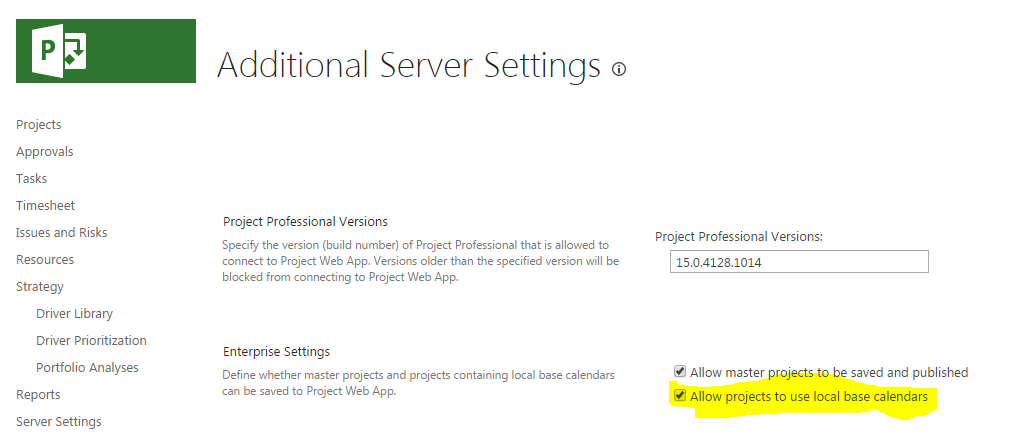
Figure 1: add the Power BI tools to Excel 2013
You can see that you have now extra tabs in the ribbon. Moreover if you navigate to the "Insert" tab, you'll see the Power View and Power Map groups.

Connect to the data source
I won't go in details on how to retrieve the data from Project Server / Online. It has been documented in many blogs particularly using oData feeds, which is pretty straight forward. Once done, you'll get for example your Project oData feed data in your Excel sheet.
Figure 2: oData feed in the Excel sheet

Add the data to Power Map
Once you open Power Map, you'll get it open as a new application but strangely, no data inside. It doesn't include automatically the data from the current datasheet.
Figure 3: Power Map first opening with no data
Then go back to Excel, select your table and add it to Power Map.
Figure 4: add your data to Power Map
Here is what you get.
Figure 5: oData feed added to Power Map
Start with Power Map
Basically here is how Power Map works:
  • The highest entity is a tour which you can export only as a video when you have finished
  • In a tour, you have different scenes which can be seen as a slide in a PowerPoint document
  • In a scene, you can defined layers, which correspond to dataset you'll display on the map
  • Each layer has some properties such as location, data, category, chart type, scene settings etc...
Note that obviously you must have a custom field related to the location in order to have relevant layers, such as a location project enterprise custom field. In my case, you can see below in PWA/Project Center that I have a "location" project level ECF associated with a lookup table.
Figure 6: location project enterprise custom fields in PWA
Add the data
First thing, I rename the default tour name and default layer name.
Figure 7: layer renamed
Then pick up your location custom field. If the location values are automatically recognized, you'll see the corresponding pointers on the map.
Figure 8: location added to the layer
Then it is time to add the data in order to create your scene. In my example, I choose the project duration and actual duration. You can see that I can choose between 5 chart types.
Figure 9: data added to the layer
Format the scene
Ok, start to look good, isn't it?? If you move your mouse cursor over the bar, you'll see the selected data like you can do with Power View. Now it is time to do some formatting choosing a theme and showing labels.
Figure 10: formatting the scene
Format the layer
As said before, you can now configure the layer. For example you can change the shape of the bars, the opacity, the height or thickness and the color.
Figure 11: formatting the layer
It might look like this (note the buttons in the map group of the ribbon).
Figure 12: layer formatted
Configure the scene
The scene can be configured in order to record the final video. You'll be able to set the effect, effect time and speed.
Figure 13: configure the scene
Improve your tour
Once you have understood those principles, you can easily create more complex tours, adding more scenes. In this second scene, I added pie charts with the project duration per enterprise project types.
Figure 14: second pie chart scene
I can also add a text box to give a description or any meaningful comments.
Figure 15: text box added
Finally you can add 2D chart. It will add a chart with the data of the active map.
Figure 16: 2D chart added
Export your tour
Here is in my own point of view one of the limitations. I found no other way for exporting my map than exporting a picture or creating a video. Meaning that I can't just have my map as a report embedded in an Excel sheet and which I could expose in a SharePoint context such as a PWA PDP. I do hope that since I'm still learning the Power BI tools, there is something that I missed about the Power Map export... As far as I understood, the closest thing available to Power Map would be PowerView's Bing maps integration, which is part of SSRS and also requires PowerPivot. 
If someone can bring some light on this particular topic, I'd be glad to here!

Here is my scene exported as a picture:
Figure 17: scene exported as a picture
Just to be sure that I'm correctly linked to my PWA tenant data, I take 2 UK projects and mark all activities as completed to see if I can see immediatly the impacts on my Power Map tour.
Figure 18: refresh oData feed from Power Map
I can see that the UK data are correctly updated.
Figure 19: UK data updated
If I select the UK projects' actual duration (blue stack), the same data is highlighted on the map.
Figure 20: data highlighted

You can also export your entire tour as a video, even with a soundtrack:
Figure 21: exporting the entire tour as a video
Unfortunately, here is where my laptop crashes time after time. Encoding the tour as a video is quite resource consuming and apparently too much for my computer. I'll make some more tries and hopefully I'll post the video soon.

Looking ahead, a final comment would be that with Excel 2016, all Power BI addons (Power View, Pwoer Query, Power Pivot, Power Map) will be natively shipped with Excel and no more accessible as addons. It will make the usage of those addons more intuitive.

Share this article :

Monday, August 17, 2015

Move entreprise calendars between instances

New week, new blog post! I guess most of you are back from holidays so I'm impatient to share this new post with you and have your comments!

My last Project Server implementation was quite a large and complex project since it involved thousands of users and gateways with HR and financial systems. Thus we needed to have many Project Server environments such as development, test, integration, training, pre-production and production. You can imagine that there are a lot of configurations required and it could be really time consuming to manage those environments. For example calendars might be tedious to manage with 6 environments, particularly in Canada where each province has its own days off. I guess it is pretty the same for the US or Australia...

So let me share share with you a trick to quickly and easily move calendars from an environment to another. 

Let's say that I have an enterprise calendar on my instance 1 and I want to copy it on a destination instance. Here is what you get in the server settings for enterprise calendars:

Figure 1: enterprise calendar to copy

Copy the calendar locally
The first step is to copy the calendar in a local file. Open Project Pro connected to instance 1 and open a blank new project. Click on Save-As and save the project locally selecting the second option: this is important since it will save in the project the enterprise calendars which are part of the global.
Figure 2: save the project locally with the global items
Just to be sure, you can open the project locally (not connected to any instance) and check in the project information dialog box that you do have the given calendar.
Figure 3: calendar imported in the local file
Configure the server settings for local calendars
Before importing the calendar to the destination instance, you have to enable the option for projects to use local base calendars from the server settings, additional server settings.
Figure 4: allow projects to use local base calendars

Import the local calendar
Open MS Project Pro connected to the second instance and open the project file with the local calendar. A procedure which might make sense would be to open the enterprise global and use the organizer to copy the calendar from the local file to the enterprise global. If you try to do so, you'll get the following error message which tells you that you have to use PWA to manage enterprise calendars..
Figure 5: message when trying to use the organizer to copy calendar to enterprise global
The trick here is to go to the Project tab, then "change working time". You can now select any calendars other than the standard one and add it to enterprise giving it a new name.
Figure 6: copy the local calendar to the destinnation instance
Of course you have to belong to a security group which has the correct global permission:
Figure 7: manage enterprise calendats global permission

Then if you go to the destination instance, you can see in PWA that the calendar has been added.
Figure 8: new calendar added to the destination instance
As you can see, in case you have many calendars to maintain between many PWA instances, this can be an easy way to proceed. This also allows keeping history and back-up of all enterprise calendars.


Share this article :

Wednesday, August 5, 2015

Sum Excel cells based on the background color

Hi and let's talk about an easier subject, since everyone is on holydays!

For once, I'll not blog about Project but about Excel. Actually this is not the first time, I already blogged about the new timeline filtering features in Excel 2013. 
Working on a timesheet report, I was looking for a way to sum the value of cells based on the background color. Indeed Excel reports are still extensively used with Project Server/Online and once the report is build, we often used formatting to make the report easier to read. So I knock at my colleague's door and beg for some help...

Note that strangely, what I'm going to explain below is not applicable for conditional formatting. Don't know why, but I suspect that the conditional formatting is not a "hard" background coloring and it would require to update the module but let's keep it simple for now and maybe this could feed a future post..

So basically, you have to start by creating a new module in Excel.
Press ALT F11, then insert, then module.

Figure 1: new module creation in Excel

Then simply copy paste the following code, which is pretty simple to understand.

Function SUM_IF_COLOR(SumRange As Range, ColorRange As Range) As Variant
'*********************************************************
' Sum cells values based on a given color*
'*********************************************************
Application.Volatile
Dim Sum As DoubleDim Cel As Range

If ColorRange.Cells.Count > 1 Then
SUM_IF_COLOR = CVErr(xlErrValue)
Exit Function
End If
For Each Cel In SumRange
If Cel.Interior.ColorIndex = ColorRange.Interior.ColorIndex Then Sum = Sum + Cel
Next
SUM_IF_COLOR = Sum
End Function

Once done, you can create a new formula in your Excel spreadsheet like:
=SUM_IF_COLOR(Sum Range;Color)
Where : 
  • Sum Range is the range where the formula should look at the colored cells,
  • Color is the cell with the color to detect.
Note also that the "application.volatile" allows the formula to be refreshed automatically when your range is updated in any ways.

Here is a simple example: my array is C2:H7 and the color to detect is A13. The cells C11 to C14 are automatically updated.

Figure 2: example of the formula for summing values based on the background color

Et voilà!!

Do you have ideas for improving this formula? Or any workaround for the conditional formatting?


Share this article :

Wednesday, July 29, 2015

Create your own carousel on the PWA home page!!

Hi,

The PWA homepage is really user friendly and pleasant to use since the carousels and tiles have been introduced in Project Server 2013 and Project Online. But wouldn't it be nice to create your own carousel integrating for example your own corporate links, or anything which might be relevant for your users? We can think about BI Center report librairies, document librairies, external links. This could look like this:
Figure 1: PWA homepage with your own carousel

So how to achieve it? The procedure is quite straight forward:
  1. Create a new "promoted links" app,
  2. Add your links in the "promoted links" list,
  3. Add the app to your homepage.
No more than this!! So here are some more details.

1. Create a new "promoted links" app
Click on the gear icon and select "add an app". Pick-up the "promoted links" app.
Figure 2: add the "promoted links" app
Give a relevant name to your new app since it will appear (if configured accordingly) as the title of your carousel on your PWA homepage.

2. Add your links in the "promoted links" list
Before adding your links to the list (actually this promoted links app is a list containing links), you need to add the pictures that will be used for the title. Try to use a square picture, ideally PNG format, knowing that 110*110 is the standard tile format. I personnaly used for the example the "Shared Documents" librairy.
Figure 3: add the picture for the tile
Once the picture is added, you can proceed and add the link in the promoted links list.

Figure 4: add a new link to the promoted links list
You will have some properties to fill, such as the path (URL) of the link and picture. You can previously copy the picture path to paste it at the right place. You also have to add the title and description of the link. 
Figure 5: promoted link settings
Note that you can also specify the order of the tile in case you add more than one tile in the carousel, as well as the laucn behavior (new tab, page navigation, dialog box).

3. Add the app to your homepage
Once you app is configured with your link, you have to add it to your homepage (or anywhere else where a webpart can be added, such as a project site, the BI Center...). Click on the gear icon, then "edit page", "add a webpart, select the promoted links app in the "apps" section and add it.
Figure 6: adding the promoted links app to the homepage
Finally, you can edit the webpart properties to adjust some settings, such as displaying the app title above the carousel.
Figure 7: tile added to the PWA homepage
And with a few more tiles:
Figure 8: some more tiles added to your new carousel on the PWA homepage
Et voilà!!

Share this article :