New week, new blog post! I guess most of you are back from holidays so I'm impatient to share this new post with you and have your comments!
My last Project Server implementation was quite a large and complex project since it involved thousands of users and gateways with HR and financial systems. Thus we needed to have many Project Server environments such as development, test, integration, training, pre-production and production. You can imagine that there are a lot of configurations required and it could be really time consuming to manage those environments. For example calendars might be tedious to manage with 6 environments, particularly in Canada where each province has its own days off. I guess it is pretty the same for the US or Australia...
So let me share share with you a trick to quickly and easily move calendars from an environment to another.
Let's say that I have an enterprise calendar on my instance 1 and I want to copy it on a destination instance. Here is what you get in the server settings for enterprise calendars:
 |
| Figure 1: enterprise calendar to copy |
Copy the calendar locally
The first step is to copy the calendar in a local file. Open Project Pro connected to instance 1 and open a blank new project. Click on Save-As and save the project locally selecting the second option: this is important since it will save in the project the enterprise calendars which are part of the global.
 |
| Figure 2: save the project locally with the global items |
Just to be sure, you can open the project locally (not connected to any instance) and check in the project information dialog box that you do have the given calendar.
 |
| Figure 3: calendar imported in the local file |
Before importing the calendar to the destination instance, you have to enable the option for projects to use local base calendars from the server settings, additional server settings.
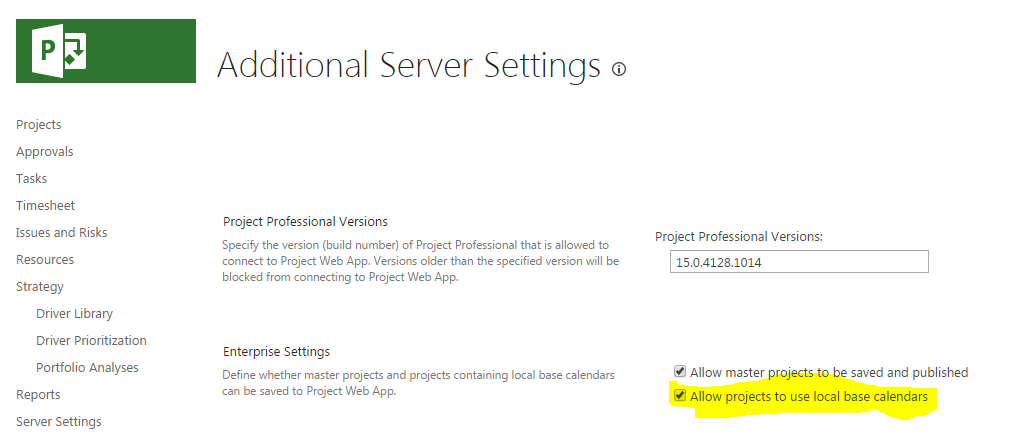 |
| Figure 4: allow projects to use local base calendars |
Open MS Project Pro connected to the second instance and open the project file with the local calendar. A procedure which might make sense would be to open the enterprise global and use the organizer to copy the calendar from the local file to the enterprise global. If you try to do so, you'll get the following error message which tells you that you have to use PWA to manage enterprise calendars..
 |
| Figure 5: message when trying to use the organizer to copy calendar to enterprise global |
The trick here is to go to the Project tab, then "change working time". You can now select any calendars other than the standard one and add it to enterprise giving it a new name.
 |
| Figure 6: copy the local calendar to the destinnation instance |
 |
| Figure 7: manage enterprise calendats global permission |
Then if you go to the destination instance, you can see in PWA that the calendar has been added.
 |
| Figure 8: new calendar added to the destination instance |
As you can see, in case you have many calendars to maintain between many PWA instances, this can be an easy way to proceed. This also allows keeping history and back-up of all enterprise calendars.


