Showing posts with label rights. Show all posts

Tuesday, June 3, 2014

View effective rights tool: now integrated to Project Server 2013

Much has been said on the 2013 release of Project Server, so it's kind of ambitious to write a brand new blog on the topic those days! But let's try!
Some of you guys surely faced the situation where a resource cannot access an object in Project Server? Or have been called on Monday morning by a gently customer and seeing that the security has been tweaked making a real mess?
Project Server 2007 PRK (Project Resource Kit) used to propose a "View effective rights" tool that allows the Project Server administrator troubleshooting issues regarding security settings and access control.

Here is basically what did it look like:
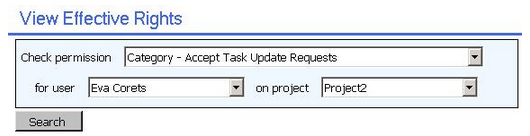
Figure 1: "view effective rights" tool in the PS2007 PRK

This tool has vanished in PS2010 (as far as I know..) and it is with a great pleasure that I'm presenting today the "view effective rights" functionality integrated to Project Server 2013!

It is pretty simple to use it, assuming of course you're using the Project Server permission mode. Just navigate to the server settings, then manage users. After selecting the culprit user, you can click on the "view effective rights" button.
Figure 2: "view effective right" in "manage users"
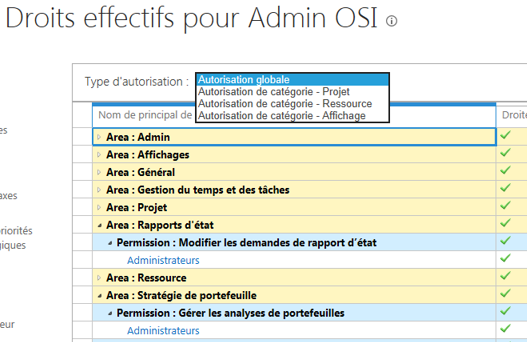
Then you'll be able to select from the drop-down list the type of rights you want to troubleshoot :
  • Global permissions,
  • Category rights for projects,
  • Category rights for resources,
  • Category rights for views,
Figure 3: type of rights selection
Figure 4: category rights on projects
Figure 5: category rights on resources
Figure 6: category rights on views

Try it and as an administrator you'll soon use it on a daily basis!

Share this article :

Friday, May 9, 2014

Do not open Projects in Edit Mode unexpectedly in Project Server 2013


If you are used to open projects in Project Professional in 2010 by double clicking on a project in the open window, you should know that the project is by default opened in edit mode and though checked-out.
Project Server 2013 is bringing here a nice improvement that I, as administrator, am really happy to welcome.
All Projects in Project Professional are by default opened in read-only mode and can be opened in edit whenever you want.


Then, while opened in Read Only , as for Office in 2010 and 2013, Microsoft introduced the "Notification bar" in Project 2013 allowing you to check-out the file.


I already hear you saying: "What about my modifications made while in read-only?". Don't worry, Project is clever enough to just check-out the project without reloading it. Any modification made in read-only mode are kept while checking out the project file


What if a co-worker changed the project in the meantime? Project will ask you to save you changes.


if you choose yes, it will ask you to find a place to save it before checking-out the file


You will have to pay attention while using the "Recent Projects" opening, by default, it will check-out the file for you!


From PWA the options are still the same : while clicking on the little workplan icon, the project will open in Edit mode to your computer MS Project and clicking the project link will open in Read only in PWA.

If you want to open in another manner, you'll have to select the line (not clicking the project link but next to it, this, I guess you're familiar) and select the proper open option from the rubban

You will never again lock a file without noticing it!
Share this article :