Showing posts with label timeline. Show all posts

Monday, April 13, 2015

Project Online sites: the timeline doesn't show up in the Project Summary webpart, why??

Hi All,

I've come across a strange issue on the TechNet forum and thanks to David N Lean, we got an interesting answer. Let me share it here with you.

The project site by default contains the Project Summary webpart which provides to the project team basic project information on the late tasks and tasks to come. It also proposes with a sliding transition the project's timeline, which is also accessible of course in MS Project Pro and in the PWA schedule PDP. So far so good. Here is what does it look like:
Figure 1: project summary webpart in the project site, displaying the project timeline (on-premise)
Hester Blok, a skillful Project Server consultant from the Netherlands, came to the forum with the following issue. It was working as expected with Project Server on-premise, but not with Project Online. Here is what she got:
Figure 2: project summary webpart in the project site, without the project timeline (Online)
Only the upcoming and late tasks are displayed, but no luck with the sliding timeline... Obviously the timeline is one of the new sexy feature that we do like presenting to customer. The immediate conclusion saying "it is not available with Project Online sites" was neither acceptable technically nor from a customer point of view.

The solution is related to the task list. As you might know, the site tasks list is synchronized with the project tasks and is in read-only mode in the project site. What do I see if I click on a task in the project timeline??
Figure 3: detail of a task in the site timeline
The timeline in the site's webpart is built from the site tasks list, not from the schedule timeline itself, nor from the project. Now I share with you a blog post from Brian a few weeks ago. It says:
"The change will make it so that enterprise projects are not synchronized with SharePoint tasks lists, by default. If you still want enterprise projects to synchronize with SharePoint tasks lists, you can turn this setting back on by going to Project Web App ‎(PWA)‎ Settings > Connected SharePoint Sites > Settings, and selecting the ‘Sync Enterprise Projects tasks to Tasks List’ check box."

Thus if you do not change this setting, when you publish first your project, the site is correctly created with the task list, but this list will never get synchronized. That seems to be the root cause why by default, in Project Online, the project summary webpart cannot retrieve the task list information for the timeline. 

So just go to the server settings, Operational Policies \ Connected SharePoint Sites and change the setting:
Figure 4: settings in the connected sharepoint site menu

Figure 5: enable the tasks list synchronization
The thing is that it changes nothing to the existing project site, as far as I could test at least. I tried publishing the project (from PWA only), removing the webpart and adding it again, edit the properties, with no luck... If someone has a trick for this part, please share it, it would be quite tedious to recreate the existing sites, attach them to the projects and migrate the content.

Thus it is quite important that you enable (if applicable to your customer's needs) this parameter while doing the first configuration run of your customer Online instance.

Share this article :

Friday, February 6, 2015

New filtering feature in Excel 2013 : the timeline!

For once, I won't write about Project Server but about a related topic: Excel! Actually both applications are closely interrelated since Excel through Excel Services allows creating tremendous reports using Office Data Connection (ODC) files on OLAP database or reporting table (it took me a while to get used saying "table" instead of "database" for PS2013!).

Excel 2010 brought a nice feature as the slicer for filtering data in pivot tables. This gave a nice graphical and mobile-adapted (smart phones, tablets) way to filter information. You could deploy thanks to this feature more user-friendly dashboards.

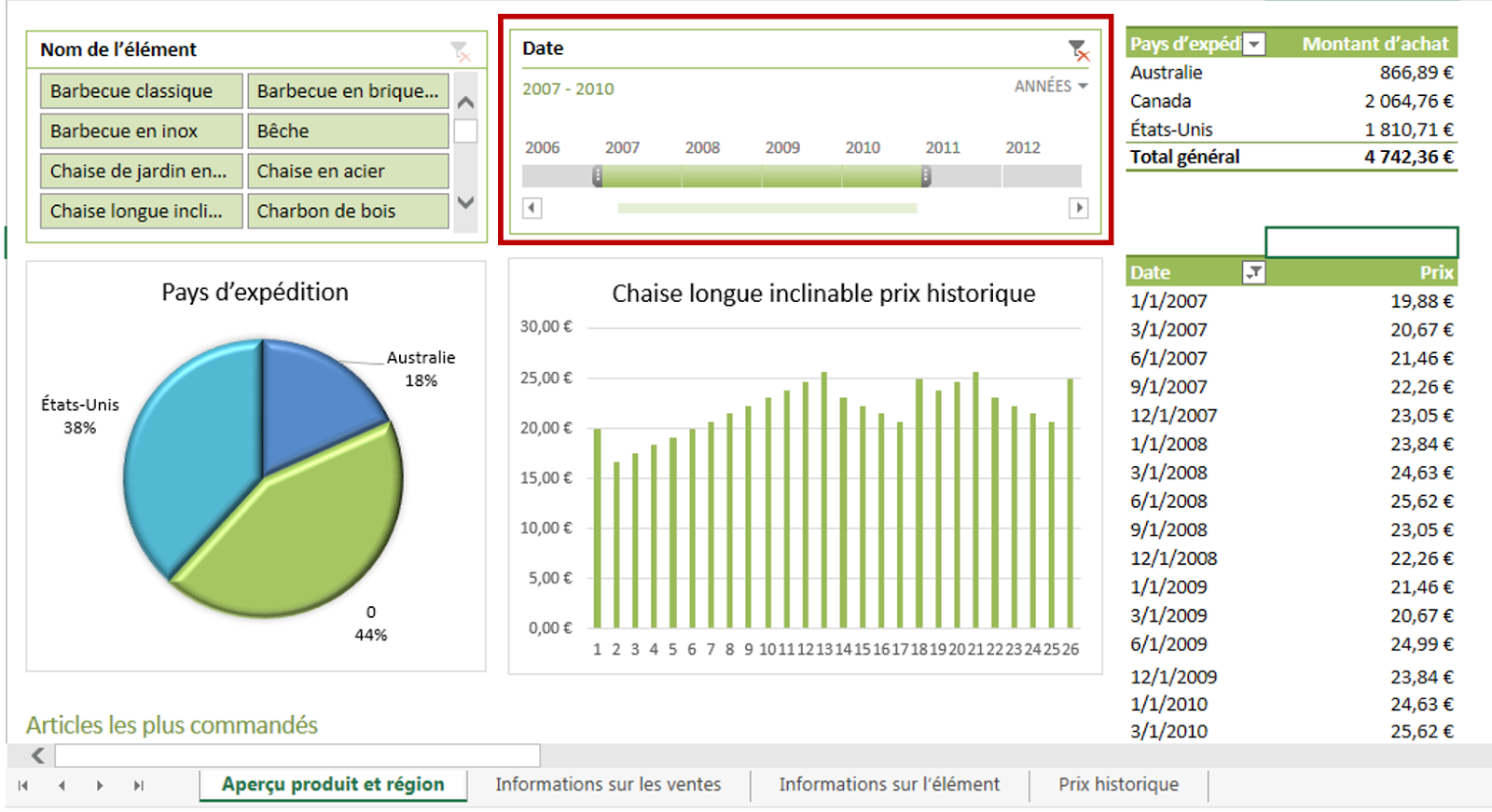
Excel 2013 goes on furhter this way introducing the timeline filtering feature that works similarly to the slicers. You can insert a timeline based on the time dimension (year, month,...) and link it to one or more pivot tables. Here is an example on the Excel Services sample dashboard that comes out-of-the-box in Project Server 2013 BI Center.
Figure 1: timeline filtering feature in a Excel Services dashboard
Then after filtering with the timeline:
Figure 2: dashboard filtered with the timeline

Now how to do it? You first need to start with an Excel file embedding data. It could be with an ODC (reporting table or OLAP data) as per my example below. Note that it won't work for MS Project visual reports, since timeline cannot use offline OLAP connections.

From the "insert" tab in the ribbon, "filter" section, select "timeline" option:
Figure 3: insert a timeline on a pivote table
From the options tab once the timeline is selected, you can connected it to any pivot table and change the formatting options.
Figure 4: timeline connection and formatting options
Et voilà!! If you had fun using the slicers, you'll love creating and using dashboards with the timeline!
Share this article :

Thursday, May 1, 2014

Timeline in Project Web Access 2013 : new nice feature!!

The timeline in MS Project Pro 2010 has been a really great new feature which was strongly appreciated by project managers when they need to quickly extract a graphical overview of their project plans for executive committees presentations.

But what about a portfolio timeline view including multiple projects? That was not possible with Project Server 2010. Hopefully Project Server 2013 brought a bunch of nice new features such as the timeline in PWA, meaning in the proejct center and in the project schedule page.

So in this post, not much writing but just a quick description of this new feature quite easy to use and with a extremely nice render!

Below is the project center (still in french, I promise I'll get an english PWA as soon as possible...), where you can select a project in the grid and click on "add a project" in the "project" tab on the ribbon, under the "timeline" section. Be aware that if you click on the project name hyperlink, you'll go directly to the project details, so just click on another cell next to the project name.

Figure 1 : Project center timeline with the "add to timeline" button

When you click on the timeline itself, a new contextual "timeline" tab appears in the ribbon. It allows you formatting the bars with custom fonts or colors. You can also choose to hide or display some items like dates or lock the timeline width. Finally selecting a specific bar in the timeline, you can remove it or display it as a legend.

Figure 2 : "Timeline" tab with formatting options in the project center ribbon

Going to the project detail in the schedule page, you'll be able (assuming you're in edit mode) to select a task and add it from the "add to timeline" button.

Figure 3 : Project detail timeline with the "add to timeline" button

Note that selecting high level phases of your project will give you a really nice result. Similarly to the project center, you can click on the timeline to display the "timeline" tab of the ribbon in order to do some "sexy" formatting.

Figure 4 : Timeline" tab with formatting options in the project detail ribbon

Note : (read carefully the edit at the end of the post, the first part of the sentence below is erroneous but I keep it as is to keep track of the post history)
As an important comment I'd mention that whereas the project center timeline is user specific (stored in the personal settings), the project details timeline is project specific, meaning that modifying it requires checking out the project in PWA or MS Project Pro. The project details timeline can then be seen from 3 different places :
  1. PWA, editable when checking out the schedule (figure 3 and 4),
  2. MS Projec Pro, editable when checking out the project (figure 5),
  3. The project site welcome page, consultable only (figure 6).
Figure 5: project  details timeline in MS Project Pro

Figure 6: project  details timeline in in the project SharePoint site


Hope you enjoy this nice new feature that brings to the PWA 2013 a brand new view at portfolio and project level. Try it and you'll love it!

EDIT June 10th 2015: Damien brings a useful contribution in his comment below by mentionning that the Project Center timeline is NOT user specific since it is stored in a Sharepoint list.

Share this article :