Showing posts with label Ms Project 2013. Show all posts

Wednesday, November 12, 2014

No More Project1 !

It is with a lot of emotion that I discovered today that Project1 is no more automatically created in Project 2013 where it was always showing up at Project 2010 start-up!

2010 opening window:


2013 opening window:

For sure, if you're not selecting any project or pushing ESC in the backstage, Project 2013 will create a Project1 for you. But I see as a great improvement to be now able to open a project without always having this Project1 to close before!

I hope you share my enthusiasm!


Share this article :

Thursday, October 9, 2014

Your Enterprise Global Doesn't Want to Save my Macro to Project Server 2013?

Hello everyone

Sorry with this blackout period.But, I'm still  happy to share interesting things I found.

Currently in a 2013 configuration, I wanted to upload to Enterprise Global two written macros to the EGlobal.
After a lot of trial to save the EGlobal after transferring the macro using the organizer, nothing is uploaded to the server.

Thanks to an old blog written by Pieter Veenstra, I managed to save my enterprise global.

Two possibilities :
Install the HotFix proposed by Microsoft or follow the below process to hack the system!


1- Open your Enterprise Global either using MS Project ( it has moved from PWA settings in 2010 to MS Project menu in 2013)
2- While the Enterprise Global is opened, go to the organizer


3-  Copy the content to the checked-out Enterprise Global

4- Create a dummy task in the enterprise global gantt chart view (be sure to not change the view, it can corrupt in some way your fragile Enterprise Global) 
 5- Delete the same task!

6-Close, save and check-in the Enterprise Global

Final- The Enterprise Global is now well saved to the server


Share this article :

Thursday, July 24, 2014

Delegation in 2013 - Don't Misundurstand the Project Pro Message

One interesting feature Project Server has introduced in 2010 is the capability to substitute yourself to someone else using the delegation.
By the way, you cannot use it while in SharePoint Permission mode

One of the drawback is that this is only working in PWA interface (except for the Business Intelligence part).
Consequently, Project Professional will not allow you to connect to a server while you have an ongoing delegation session.
So now, let's imagine you're in a delegation session in the name of this famous John.

Then, you try to open your MS Project Pro connected to your server and, Surprise, a misleading message appears.

It's not that wrong message as you do have inadequate permissions but not really explicit!

So, next time a user call you with this kind of message, make sure they are not using the delegation in the meantime before trying to check network or permissions to the server!

Regards!
Share this article :

Monday, May 19, 2014

New task path in MS Project Professional 2013

MS Project 2013 has brought a nice bunch of new formatting features. Something that needs at least 10 clicks or writing formulas now takes only a click.
Figure 1: task path menu in the "format" tab of the ribbon
Among the new formatting features of 2013 version (critical path, slack, late tasks), we’ll go in this article through the task path formatting options. Those new formatting options allow the user displaying in one click the predecessors and successors of a given task. Meaning that it is now pretty straight forward to anticipate impacts on tasks.

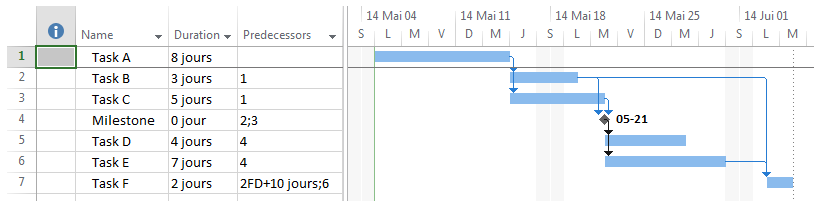
Let’s take an example creating a simple project plan with a milestone that you need to look at more in detail.
Figure 2: sample project plan
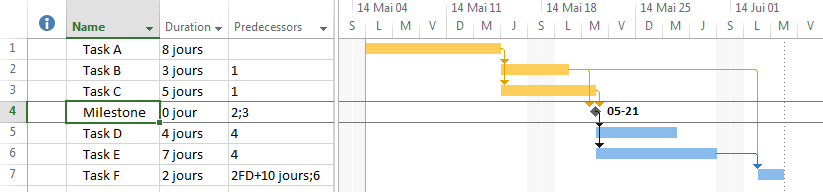
  • Predecessors : the predecessors of the selected task will be highlighted. In our example, the milestone has tasks A, B and C as predecessors. Note that it is not only direct predecessors, but also predecessors of predecessors.
Figure 3: milestone's predecessors
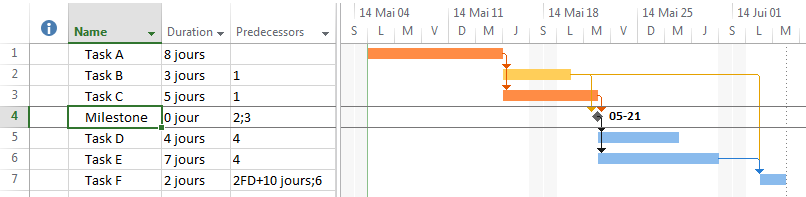
  • Driving predecessors : task B has not a direct impact on the milestone thus it is not highlighted as a driving predecessors. Indeed it has a shorter duration that anothers direct predecessors (task A and C). In other words, task B's slack for the milestone is greater than 0 thus it is not a driving predecessor. Note that you can multi-select formatting options, adding driving predecessors to predecessors formatting.
Figure 4: milestone's driving predecessors
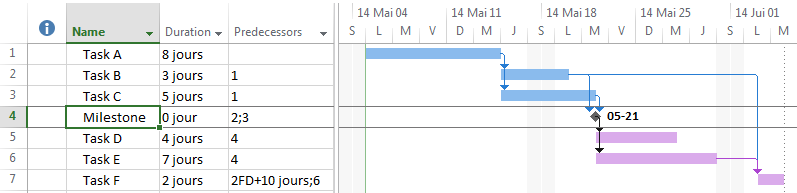
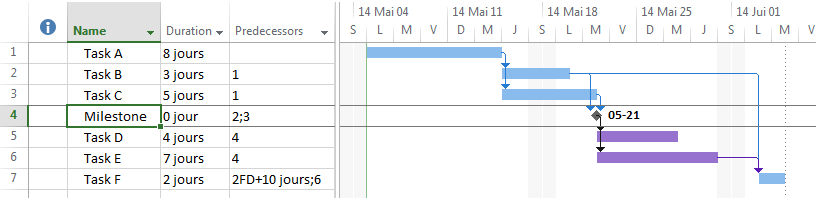
  • Successors : tasks D, E and F are successors of the selected milesone.
Figure 5: milestone's successors
  • Driving successors : task F is not directly impacted by the milestone since its direct successors are tasks D and E, thus it is not highlighted.
Figure 6: milestone's driving successors
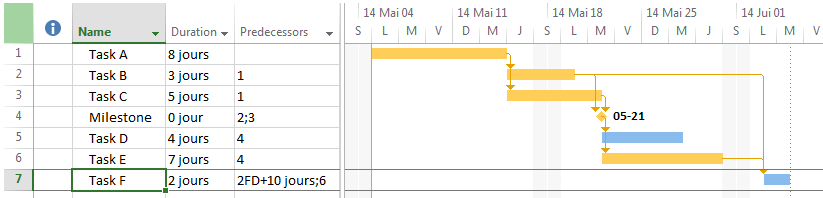
Note that this is a dynamic feature, meaning that keeping for example the « predecessors » option selected and selecting another task (task F for example), the formatting will be updated (compared to figure 3) when clicking, highlighting the newly selected task’s predecessors :
Figure 7: dymanic update of the task path on task change
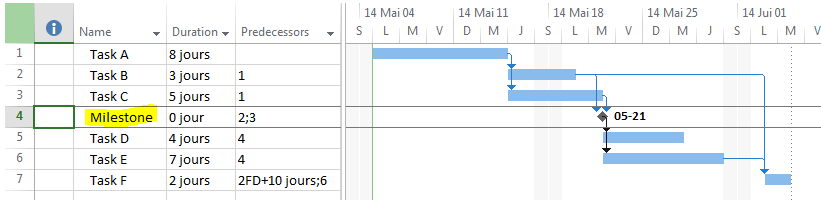
As a nice improvment versus MS Project 2010, we’ll mention that the selected task is also under and upper lined in the Gantt chart.
Figure 8: task selected in MS Project Pro 2010
Figure 9: task selected in MS Project Pro 2013 under/upper lined in the Gantt chart

Hope you'll like playing with those new formatting features that give a brand new user experience to our project managers.
Share this article :