Tuesday, July 8, 2014

Manage Calendars using Recurrence Pattern

One of the challenge of planning with MS Project is to be accurate in the dates and vacations.
Though, statutory holidays coming every year needs to be taken into account!

Let's take the example of the 4 of the US holidays found in Wikipedia:
Official Name Date
New Year's Day January 1 (Fixed)
Birthday of Martin Luther King, Jr. Third Monday in January
Inauguration Day First January 20 following a Presidential election
Good Friday The Friday before(western) Easter
Interesting in those holidays is that they happen every year. Some can be set recurring, some not:
January first is always the January first (hopefully for those who are partying all New Year eve).
Martin Luther King, Jr. birthday is the 3rd Monday of January. Strange for an anniversary but still, the public holiday is like that.
For the Inauguration Day, this is not possible to predict when it will happen, recurrence will not help in that case
The Good Friday is arriving before Easter, which is again unpredictable and though, the recurrence will not help either.

MS Project and though Project Server is proposing a nice feature in setting recurrence to exceptions in calendar. 
You will first have to go to the Calendar setting:

After creating an exception, while clicking to the details detail button, you will get the following window:

Now, see how to set the above defined recurring and not recurring holidays.
January first:

Martin Luther King, Jr. birthday:

Inauguration Day:

Good Friday:


Now you can declare enterprise calendars with mostly recurring statutory holidays. Some will still need to be entered one by one.
Obviously, this can be configured for Project Server calendars in going to enterprise calendars in the PWA settings

In the next future, I will share with you some calendars until 2020!


Additional note thanks to Gary Chefetz comment:
While creating recurrence, you will have to identify exceptions such as first of January falling on a Sunday. Then a creation of a specific calendar exception will be necessary. The easy way to identify such case would be to check each calendar exception year after year and verify which day it falls.

Furthermore, try to limit your calendars horizon to your projects horizon to not overload the server and the database with unnecessary information


Hope you will love to avoid defining calendar exceptions every year!
Share this article :

Monday, June 30, 2014

Change a custom field label in PDPs

When you're in charge of a large Project Server deployment, you might face concerns and issues that are due to the project scaling. When I say "large", I mean thousands of users, hundreds of custom fields, tens of project types, PDPs...

In this context, in order to keep a consistency between lookup tables, custom fields or any other objects, I usually use a naming convention such as "lkp_table name", or "organization_customfieldname" for multi-organization deployment. Thus it means that you do need to find a way to display a custom label for those custom fields, different from the name in the system.
Figure 1: naming convention for lookup tables or custom fields

It also make sense for out-of-the-box fields such as "project Owner". In many case, the project owner will be a project manager, but it could be a PCO. Thus organizations might want to give a custom label to this native field.

Facing this concern, evenif I'm not a developer, there is an easy way to give custom label. So enjoy it because that will probably be the one and only post I'll ever write about coding. But as you'll see, it is not much difficulty.

We'll make a simple example with the "owner" out-of-the-box field.
Figure 2: default owner field

First you need to download the following jquery librairy. You can upload the js file to the style librairy of your PWA site collection, accessible from the "site contents" link. Once uploaded, you can download from the TechNet gallery a script provided by a fellow MVP Paul Mather. Download the script for example in your site collection document librairy (sites/pwa/SiteCollectionDocuments).

You can edit the js file and replace the custom label.
Figure 3: update the js file with your custrom label
Then edit your PDP from the server settings and add a content editor webpart.
Figure 4: add a content editor webpart to the PDP
Edit the webpart then enter the path of your javascript file (/sites/pwa/SiteCollectionDocuments/ChangeCustomFieldDisplayLabelonPDP.js in my case) and set the webpart as "hidden":

Figure 5: enter the javascript file's path in the webpart configuration and hide it

Et voilà!! The native field is "renamed" as you needed to.
Figure 6: PDP with the new label

Note that if you have installed language packages, since the code contains the name of the field and not the GUID, you'll need to consider writing in the javascript file the label for custom field in all languages supported on your PWA instance.

**2014-08-01 : need to add a function or it will not work. I'll update the post asap.
**2015-06-22: post (lately) updated with a new code example, based on Paul Mather's excellent post.

Share this article :

Wednesday, June 11, 2014

How to disable in MS Project Pro the "new tasks are created in ... scheduled mode"

A quick one for this week! More than an article, let's call it a tip. We are all experts that deal with advanced features to answer elaborate customer's business needs. BUT.... The user acceptance is one of the key success factor. And after deploying Project Server since 2006, I've come to the conclusion that a few little tiny details can promote or limit this acceptance.

So what about this very annoying notification each time users (actually including yourself as a Project Server SME) open MS Project Pro?
Figure 1 : new tasks creation mode notification message
I actually lived with this notification with a fatalistic acceptance unless the question was raised and answered on the TechNet Project forum by one of our excellent MVP (Julie Sheets, not to mention any names...).

YES YOU CAN deactivate this notification, god!!

Once MS Project is opened (and after the notification disappears argghh), just right click on section which displays the scheduling mode for the new tasks:
Figure 2: scheduling mode for new tasks

You'll get a menu that proposes various options for customizing the status bar. Just deselect the "new task mode notification":
Figure 3: unselect the "new task mode notification" option in the status bar customization menu

Et voilà!!
Share this article :

Tuesday, June 3, 2014

View effective rights tool: now integrated to Project Server 2013

Much has been said on the 2013 release of Project Server, so it's kind of ambitious to write a brand new blog on the topic those days! But let's try!
Some of you guys surely faced the situation where a resource cannot access an object in Project Server? Or have been called on Monday morning by a gently customer and seeing that the security has been tweaked making a real mess?
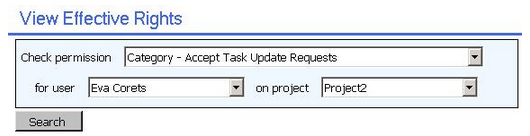
Project Server 2007 PRK (Project Resource Kit) used to propose a "View effective rights" tool that allows the Project Server administrator troubleshooting issues regarding security settings and access control.

Here is basically what did it look like:
Figure 1: "view effective rights" tool in the PS2007 PRK

This tool has vanished in PS2010 (as far as I know..) and it is with a great pleasure that I'm presenting today the "view effective rights" functionality integrated to Project Server 2013!

It is pretty simple to use it, assuming of course you're using the Project Server permission mode. Just navigate to the server settings, then manage users. After selecting the culprit user, you can click on the "view effective rights" button.
Figure 2: "view effective right" in "manage users"
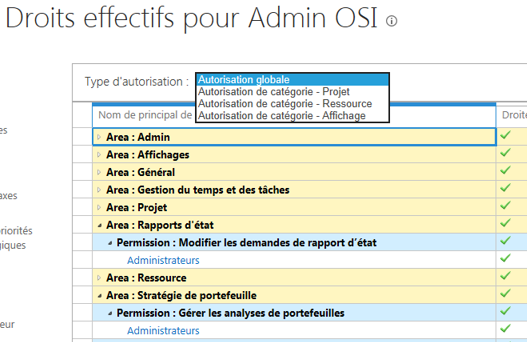
Then you'll be able to select from the drop-down list the type of rights you want to troubleshoot :
  • Global permissions,
  • Category rights for projects,
  • Category rights for resources,
  • Category rights for views,
Figure 3: type of rights selection
Figure 4: category rights on projects
Figure 5: category rights on resources
Figure 6: category rights on views

Try it and as an administrator you'll soon use it on a daily basis!

Share this article :

Monday, May 26, 2014

Master the Multiple Choice Custom Fields in your Excel Reports!

It happens sometime that there is a need to report information stored in a Multiple Choice Custom Field:

If this happened to you, you must have seen that the custom field is not part of the standard views such as MSP_Project_UserView.
You will have instead a specific view for each Multiple Choice Custom Field named MSPCFPRJ_<CustomFieldName>_AssociationView.

Then, you will have to write down a clever request giving you the list of choices made by projects.
Don't worry, you can find this clever information right below!
SELECT Proj.ProjectName,
       lt.MemberFullValue AS 'VLookupField'
FROM dbo.MSP_EpmProject_UserView AS Proj 
LEFT OUTER JOIN [dbo].[MSPCFPRJ_<YOUR_CUSTOM FIELD NAME>_AssociationView] AS MVassoc -- view for multi value field 
ON proj.ProjectUID = MVassoc.EntityUID 
LEFT OUTER JOIN dbo.MSP_EpmLookupTable AS lt 
ON MVassoc.LookupMemberUID = lt.MemberUID 
order by    ProjectName asc

I would recommend to do the post treatment in the excel itself. it would be possible to link the below request with the one that will gather all your project information but, be careful, it will multiply the number of lines per the number of choices made on projects.

Then, I recommend to create a specific tab in your excel report to show the information
This will return you something like this while rendered in an Excel pivot table with data connection:
Be sure to have checked the "Repeat All Items Label" check box

Now, you may want to return these information on another sheet gathering other project information.
To do so, I will create a one cell concatenation of the selected project.
First step is to gather the information based on the project on several cells

The formula to gather several lines of a specific project is quite ugly:
{=IF(ISERROR(INDEX($A$1:$B$5000,SMALL(IF($A$1:$A$5000=$G$4,ROW($A$1:$A$5000)),ROW(1:1)),2)),"",INDEX($A$1:$B$5000,SMALL(IF($A$1:$A$5000=$G$4,ROW($A$1:$A$5000)),ROW(1:1)),2))}

$A$1:$B$5000 = Where to search
$A$1:$A$5000 = Where are the project names
$G$4 = The project name to search
1:1 = The line number you want to fetch
Be careful, this is array formulas, that means that you will have to click on CTRL+ENTER to validate your formula!

Here is the overall list of formulas, as you can see, only the parameter number changed (I return here a maximum of 12 entries)

To finish, the easiest part is to put all that in a single cell with the following formula.
To render it nice, I created a second column containing the separator so that a separator is only created while a value is returned. I then concatenated the overall in a cell


Separator cells are looking if there is a value after the current one and if yes displays the separator:
=IF(G6<>"",$H$19,"")

Result cell is a concatenation of the entire table:
=CONCATENATE(G5,H5,G6,H6,G7,H7,G8,H8,G9,H9,G10,H10,G11,H11,G12,H12,G13,H13,G14,H14,G15,H15,G16)

Tips: you can use =CHAR(10) as separator to render in a cell on several lines

You are now able to render multi-choice custom field in your excel services report!

Find here an example of all I just said in an excel file!

Help from Microsoft : http://msdn.microsoft.com/en-us/library/office/ee767688.aspx
Share this article :