Wednesday, March 25, 2015

References for Project Server security and CUs

Hi Folks!

Project Server is a complete and complex solution which has been strongly documented over the years and versions. It cannot count how many time in a week I use my favourite search engine to look for some references. And the week after, I'll be surely looking for the same reference again!! 

Recently Brian Smith provided a tremendous blog where he listed (quite a gigantic job) all CUs for Project Server 2010 and 2013. It gave me the idea to do quite a similar job for the security references. We, Project admins, deeply rely on the security model which is quite complex and slightly changing at each version.

Thus I'm proud to provide you this simple table but saving it in your browser bookmarks might save you time!

Version
Global permissions
Categories
Default categories
Groups / templates
Changes versus previous version
Project CUs
Project Server CUs
2007
1
1
1
1
1
Non Applicable
Non Applicable
2010
1
1
1
1
Included in the global permissions article
1
1
2013
1
1
1
1
Included in the global permissions article
1
1

Hope you like it!

Edit 2015-03-30: in addition, I'll mention that this reference table might be particularly helpful due to the way the TechNet articles' URL are made. For example in many articles and blogs about Project Server 2010, the URL is referenced as "https://technet.microsoft.com/en-us/library/cc197631.aspx". When the Office version (ie 12 for 2007, 14 for 2010 and 15 for 2013) is not included in the URL, the latest version is automatically chosen. What is the consequence? While those blogs were first published, the lastest version was 2010, so it was fine. But now that the latest version is 2013, the articles/blogs about 2010 version refer to 2013 version. Quite not useful. That's why we include in this table URLs with the Office version (v=office.14 for example).

Edit 2015-04-15: it is not quite the same topic but talking about Brian's CU reference posts, I had the idea to include them in the above reference table, for both Project and Project Server. Kind of a reference of references...

Share this article :

Wednesday, March 4, 2015

Want to know more about what's in the reporting Database

Hello all

Long time no see!

Really short blog today, I wanted to report on specific information from the Business drivers and Portfolio priorization.
I used the Database Reference Schema to help me find where to find the data in the Reporting Database.
So, I would like to remind all my colleagues who want to access to Reporting Database that you can use the schema reference that can be found here:
http://blogs.msdn.com/b/project_programmability/archive/2013/01/28/project-server-2013-reporting-database-rdb-schema-reference.aspx 


Hope this will help your report programmings

See you!
Share this article :

Monday, February 23, 2015

O365 Roadmap - Project focus


Coming back from the TechDays 2015 in Paris, I've been reading a couple of articles about O365 which is going to be a particular target for MS developers and innovation in the coming years. I've ended on this roadmap which lists "updates that are currently planned for applicable subscribers. Updates are at various stages from being in development to rolling-out to customers to being generally available for applicable customers world-wide"

If you search for "Project" updates, you'll find 4 interesting updates. Obviously being a MVP has some advantages and I already heard of those improvments to come. But the question was more about the NDA on those new developments which prevents me blogging. Now it is public, let me summarize for you what you can expect about Project.

1. Apps for Project Pro for Office 365 write support

Apps for Project Pro for Office 365 will be able to write-back and update the project plan. 

2. Capacity Management capabilities in Project Online

Resource Managers can benefit from configurable color coded heatmaps to better predict the utilization of   their resource pool in Project Online. These heatmaps will also support seamless drill-down capabilities all the way down to individual resources and their assigned projects. 

3. Multiple timeline bars in Project Pro for Office 365

In Project Pro for Office 365 you will be able to create multiple timeline bars within the Timeline view. You will also be able to set a custom date range for each timeline bar in order to just highlight a certain time period of the project in the Timeline view. 

4. Resource Engagement Workflow in Project Online

Project managers, working in Project Pro for Office365 can systematically place resource requests in order to build their project teams.  Soon thereafter, Resource managers working in Project Online willbe able to view, modify, accept or reject those requests. Also, decisions made by Resource managers  will be available to Project Managers within Project Pro for Office 365 to review and plan accordingly.  

Do not hesitate to drill down into the several updates in the list, particulary around O365 which will for sure have a positive side effect on the Project word, such as the O365 notification pane or Power View integration in Excel Online.
Share this article :

Monday, February 16, 2015

Tip for resource forecasting: show assignment units as a decimal

Not all our readers use Project Server, thus this post is only related to MS Project. Indeed Project Server proposes advanced features to enhance capacity planning and forecasting through tools such as the resource plan which is very convenient in an early planning phase. It allows entering FTE by skills (or named resources evenif it makes less sense) in order to plan your resource demand. In my screenshot below, work is displayed in hours but it can also be managed in FTE or in days.
Figure 1: Project Server resource plan
Does that mean that MS Project (standalone) users cannot achieve such a goal?? I don't think so, since MS Project still proposes a large set of planning features. I'll show you in this short post how a very simple option in MS Project allows you visualizing in a better way FTE required for a project.

You are all aware of the unit concept which is meant to give the ratio the resource will work on the task. By default this is configured as a percentage.
Figure 2: Assignment with units as a percentage
In the example above, I have assigned 5 full-time analyst on my task, and I can check the work calculated accordingly by Project.

Having provided MS Project trainings since years now, I've had a lot of questions about this assignment unit. It is not quite difficult to understand but it requires kind of self thinking to masterize the concept. For example, you never say "I'll assign 250% of  designer on this task" but "I'll assign 2,5 designers full-time on this task".

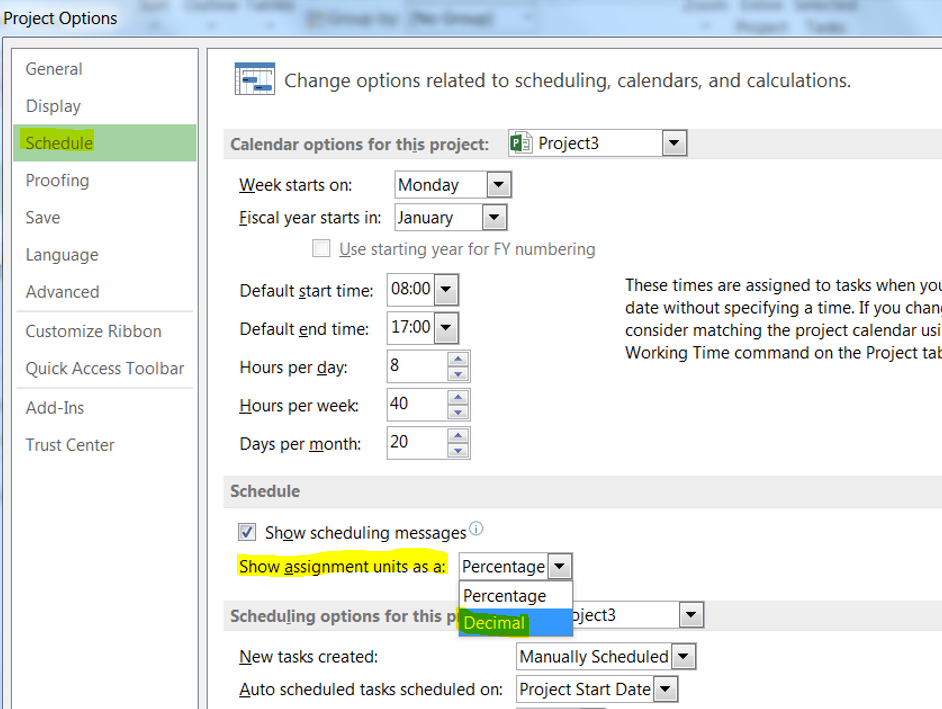
This is where I'm heading to: Project allows you doing such a wonderful trick. Going to file, options, schedule, you'll be able to set the assignment units as a decimal:
Figure 3: setting the assignment units as a decimal

Then I can happily forecast the resource demand on my project more easily:
Figure 4: creating an assignment with decimal units
Note that it changes absolutely nothing to how Project will calculate the assignment data, it is just more convenient for certain users and might make easier the resource forecast phase.
Share this article :

Friday, February 6, 2015

New filtering feature in Excel 2013 : the timeline!

For once, I won't write about Project Server but about a related topic: Excel! Actually both applications are closely interrelated since Excel through Excel Services allows creating tremendous reports using Office Data Connection (ODC) files on OLAP database or reporting table (it took me a while to get used saying "table" instead of "database" for PS2013!).

Excel 2010 brought a nice feature as the slicer for filtering data in pivot tables. This gave a nice graphical and mobile-adapted (smart phones, tablets) way to filter information. You could deploy thanks to this feature more user-friendly dashboards.

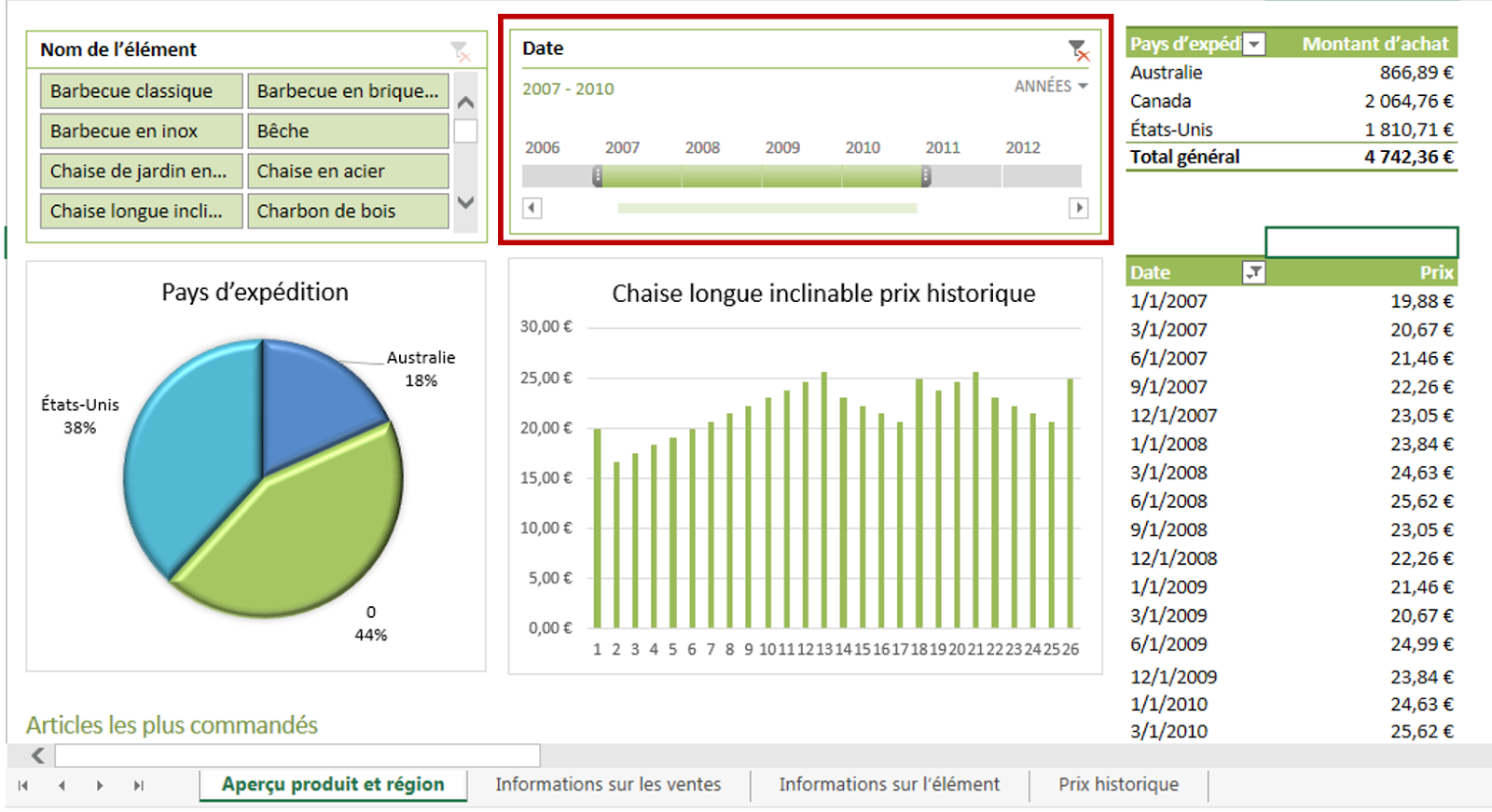
Excel 2013 goes on furhter this way introducing the timeline filtering feature that works similarly to the slicers. You can insert a timeline based on the time dimension (year, month,...) and link it to one or more pivot tables. Here is an example on the Excel Services sample dashboard that comes out-of-the-box in Project Server 2013 BI Center.
Figure 1: timeline filtering feature in a Excel Services dashboard
Then after filtering with the timeline:
Figure 2: dashboard filtered with the timeline

Now how to do it? You first need to start with an Excel file embedding data. It could be with an ODC (reporting table or OLAP data) as per my example below. Note that it won't work for MS Project visual reports, since timeline cannot use offline OLAP connections.

From the "insert" tab in the ribbon, "filter" section, select "timeline" option:
Figure 3: insert a timeline on a pivote table
From the options tab once the timeline is selected, you can connected it to any pivot table and change the formatting options.
Figure 4: timeline connection and formatting options
Et voilà!! If you had fun using the slicers, you'll love creating and using dashboards with the timeline!
Share this article :